Vector QR Codes for Designers: Print-Ready SVG & PDF
Vector QR Codes for Designers: Print-Ready SVG & PDF
For most workflows, SVG is the right format for vector QR codes. Use PDF when your print shop needs a CMYK-profiled press file, and fall back to EPS only when a legacy prepress system explicitly requires it. The immediate action: generate your code as SVG with a four-module quiet zone, set error-correction level (ECL) to M for clean surfaces or H when overlaying a logo, then export a PDF with an embedded CMYK profile for press. Tools like Rdyrct, QRCode Monkey, and QR Planet all export vector formats directly.
Quick rule: SVG for design and web, PDF for the press, EPS only when the printer asks for it.
Key Takeaways
Vector QR codes require the right format, correct ECL, a four-module quiet zone, and a physical scan test before any print job is approved.
| Point | Details |
|---|---|
| Default to SVG | Use SVG as your master file for all web and design workflows; export PDF for CMYK press jobs. |
| Four-module quiet zone | The QR specification requires four clear modules on every side; embed it in the exported artwork so prepress cannot crop it. |
| ECL H for logo overlays | Raising ECL to H allows up to ~30% obscuration; always increase physical size to keep module pitch above 0.4 mm. |
| Test on the actual substrate | Print a proof at final size with all finishing applied and scan with at least three devices before approving the job. |
| Rdyrct for dynamic codes | Rdyrct generates branded vector QR codes backed by privacy-first short links with no IP address logging and real-time analytics. |
Table of Contents
- How do you create a vector QR code from scratch?
- Which tools actually export vector QR files?
- SVG vs. PDF vs. EPS vs. PNG: which format fits your use case?
- Design rules that keep your QR code scannable
- Print-ready checklist: what to confirm before sending to press
- Dynamic vs. static QR codes: which one do you actually need?
- How to convert a raster QR code to vector the right way
- Testing your QR code before the print job is approved
- Rdyrct’s approach to privacy-first dynamic QR codes
- What designers consistently get wrong with vector QR codes
- Rdyrct gives you privacy-first dynamic vector QR codes
- Sources
How do you create a vector QR code from scratch?
A true vector QR code starts with the right payload, not the right tool. Follow this sequence and you will not need to redo it.
- Shorten your URL first. A long URL forces a higher QR version, which means more modules, smaller module pitch, and a harder scan. A short branded link keeps the payload compact and the code simpler.
- Choose your error-correction level. M error correction level works for most clean surfaces. Bump to Q level for outdoor or textured placements. Use H level any time you plan to overlay a logo, per the QR Code specification.
- Generate with a vector-capable tool. Open your generator of choice, paste the URL, and confirm it offers SVG or PDF export before you start customizing.
- Set the quiet zone to four modules. This is a hard specification requirement, not a style preference. Four clear modules on every side.
- Enable “join modules” if the option exists. This merges individual square paths into a single compound path, which eliminates hairline rendering gaps and reduces file size. The qrcode-svg NPM package exposes this as a direct option; most GUI tools have an equivalent toggle.
- Export your master SVG. Keep this file untouched as your source of truth.
- Export a press PDF from the SVG. Embed fonts, apply your printer’s CMYK profile, and confirm the quiet zone is intact inside the PDF artboard.
Pro Tip: Never scale a QR code by dragging a corner in a layout app without checking the resulting module pitch. Calculate the final physical size first, then place the vector at that exact size.
Which tools actually export vector QR files?
Not every “free QR generator” delivers a true vector file. Many export a high-res PNG and label it a download. Here is how the tool landscape actually breaks down.
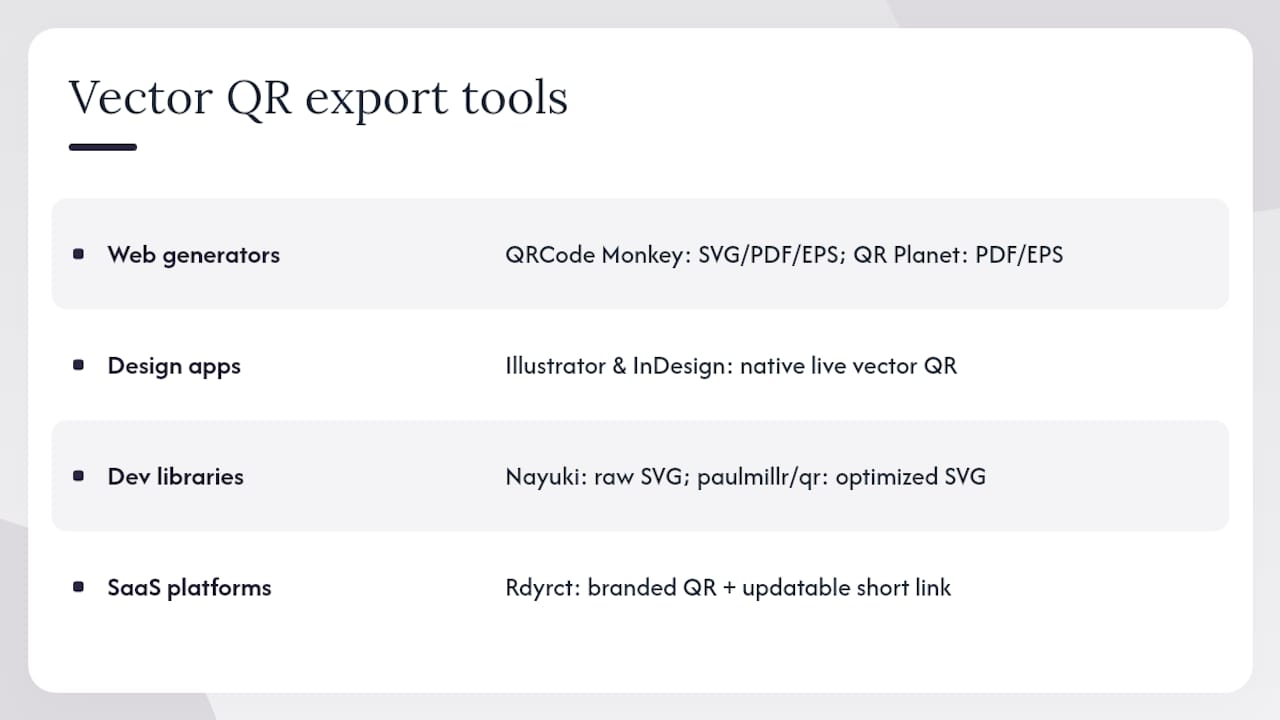
Web-based generators are the fastest entry point. QRCode Monkey exports SVG, PDF, and EPS directly from its free tier and recommends SVG for editable design work. QR Planet covers EPS alongside PDF and notes that PDF is a stronger choice for modern CMYK prepress. Adobe Express generates QR codes with download options, though its vector export depth depends on the plan tier.
Design-app built-ins are underused. Adobe Illustrator and InDesign can generate QR codes natively via Object > Generate QR Code. The output is a live vector object sitting directly in your document, which means no import step, no format conversion, and no risk of a rasterized paste. For production designers building multi-page layouts, this is the cleanest path.
Developer and CLI libraries matter when you need batch output or programmatic generation. The Nayuki QR Code generator library implements all 40 QR versions and all four ECLs across multiple languages and emits raw SVG. For JavaScript and Node.js environments, paulmillr/qr offers a minimal, dependency-free implementation with optimized SVG output. Both are solid choices when you need to generate hundreds of codes for a product catalog or event campaign.
SaaS platforms with branded QR output add a layer most generators skip: the short link behind the code. Rdyrct generates branded QR codes tied to privacy-first short links, which means the vector file you hand to the printer is backed by a redirect you can update without reprinting.
Pro Tip: If a web tool does not show an explicit “SVG” or “PDF” button before you hit generate, assume it will give you a PNG. Check the export options first.
SVG vs. PDF vs. EPS vs. PNG: which format fits your use case?
Vector formats store shapes as mathematical paths. Raster formats store pixels. Scale a PNG QR code past its native resolution and the module edges blur, which can cause scan failures. Scale an SVG to billboard size and every edge stays crisp.
When to use each format
SVG is the default for most designers. It is browser-native, lightweight, editable in Illustrator and Inkscape, and supports logo embedding. Use it as your master file and for any web or screen context.
PDF is the right choice for print production. It supports embedded CMYK color profiles, handles transparency correctly, and is what most US print shops expect for press-ready files. As QR Planet notes, PDF handles modern color features more reliably than EPS in current prepress workflows.
EPS is a legacy format. It still appears in older print pipelines and some sign shops request it, but it can struggle with gradients and modern design features, and file sizes tend to run larger. Use it only when specifically asked.
PNG has its place for fixed-size digital contexts: email signatures, website embeds at a known pixel dimension, or apps that do not accept SVG. Generate it at 2× or 3× the display size. Never upscale a low-res PNG for print.
| Format | Web use | CMYK/prepress | Logo support | Legacy compatibility |
|---|---|---|---|---|
| SVG | Excellent | Limited (RGB native) | Yes | Modern tools only |
| Limited | Excellent | Yes | Broad | |
| EPS | Poor | Good | Limited | Very broad |
| PNG | Good (fixed size) | Not recommended | Embedded only | Universal |
- Use SVG as your working master and for all screen/web delivery.
- Export PDF for every press job; embed the printer’s CMYK profile.
- Request EPS only when the vendor’s system cannot accept PDF.
- Generate PNG at high resolution for pixel-specific digital placements; never use it as a print source.
Design rules that keep your QR code scannable
A branded QR code is not just a visual asset. It is a functional object that has to work under real scanning conditions. These rules are where most design failures originate.
Contrast is non-negotiable. Dark modules on a light background is the baseline. Reversing to light modules on a dark background can work, but test it carefully. Gradients inside the modules themselves are a common failure point: a gradient that looks fine on screen may reduce local contrast enough to confuse a scanner. Check luminance contrast, not just visual appeal.
The quiet zone is part of the code. Four modules of clear space on every side, per the QR specification. Designers frequently let bleed, copy, or adjacent artwork encroach on this space during layout. Treat the quiet zone as a locked margin in your artboard.
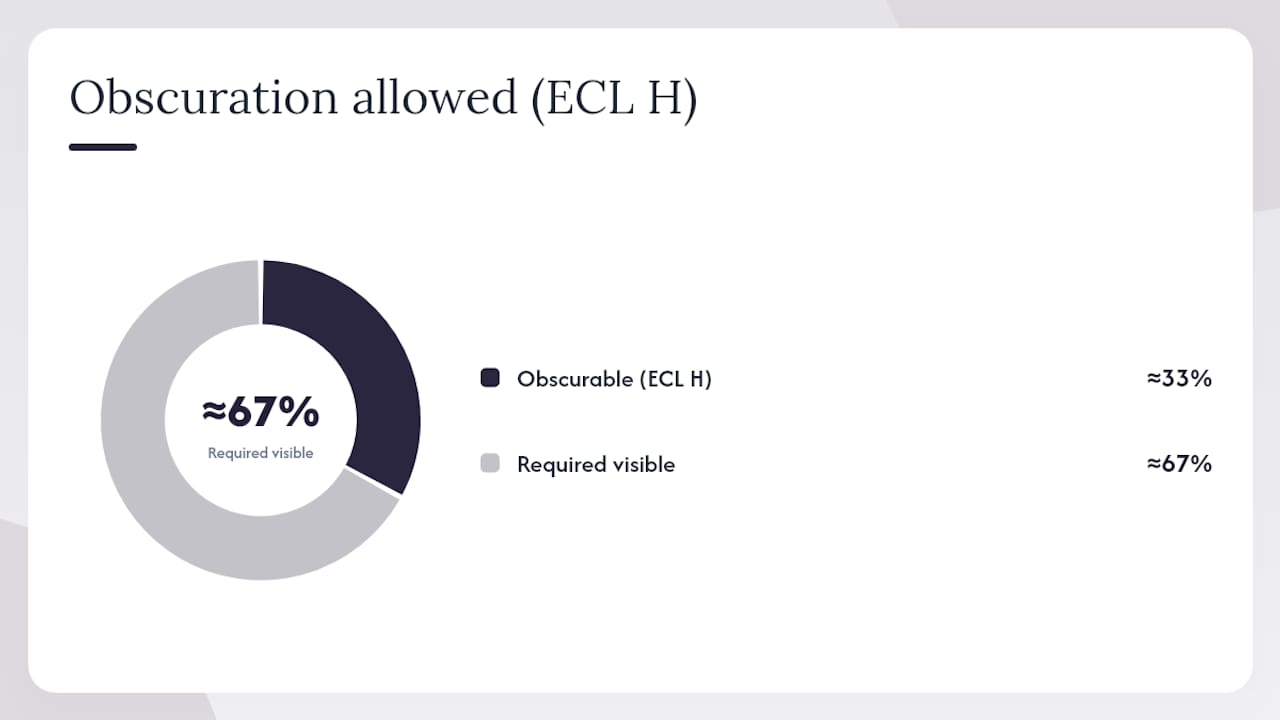
Logo overlays require ECL H. ECL H allows up to about a third of the code area to be obscured and still scan correctly. Keep your logo footprint conservative, well under that ceiling, and always test at the final physical print size. A logo that scans fine at 10 cm may fail at 3 cm. For a deeper look at color and contrast choices, Rdyrct’s QR code color guide covers brand-color usage and scan reliability in detail.
- Keep the finder patterns (the three corner squares) completely clear of any overlay.
- Avoid placing the logo so it touches or overlaps a finder pattern.
- Use solid fills for modules, not gradients or textures.
- When using brand colors, verify the contrast ratio holds in the CMYK print profile, not just on your RGB monitor.
Pro Tip: Print a wallet-sized proof and scan it with three different phones before approving any logo overlay. What passes on a flagship iPhone may fail on a mid-range Android.
Print-ready checklist: what to confirm before sending to press
A failed print run costs real money. These are the parameters to lock down before the file leaves your hands.
- Module pitch. A practical floor for handheld smartphone scanning is roughly 0.4 mm per module. For a simple low-version URL code, that translates to a minimum overall size of about 20 mm per side. Higher-version codes with more modules need proportionally more physical space.
- Quiet zone in the artwork. Confirm the four-module quiet zone is embedded in the exported file, not just visible on your screen. Prepress operators sometimes crop to the visible artwork boundary and remove it.
- Color profile. Export your press PDF with the printer’s CMYK profile attached. Do not send an RGB PDF and assume the print shop will convert it correctly.
- No rasterized modules. Open the PDF in Acrobat and zoom to 400%. The module edges should remain perfectly sharp. If they pixelate, the QR was rasterized during export.
- Substrate and finishing. Laminates, UV varnish, and textured stocks all affect scan reliability. Request a physical proof on the actual substrate before approving the full run.
- Scan the proof. Scan the physical proof at the final size with at least two phone models before signing off. Real-world scanning conditions differ from screen previews in ways that only a physical test reveals.
Printer handoff package: master SVG, press-ready CMYK PDF, physical proof scan confirmation, and substrate spec sheet.
Higher ECL increases symbol density, which means more modules in the same space. If you raise ECL to H for a logo overlay, you may need to increase the overall code size to keep module pitch above the 0.4 mm floor.
Dynamic vs. static QR codes: which one do you actually need?
The vector format question and the static-vs-dynamic question are separate decisions, but they interact in practice.
A static QR code encodes the destination directly in the symbol. Change the URL and you need a new code, a new file, and a reprint. Static codes have zero redirect latency and no dependency on external infrastructure.
A dynamic QR code encodes a short redirect URL. The destination can be changed at any time without touching the printed asset. That single difference has significant campaign implications.
- Use dynamic when: you need scan analytics, plan to A/B test destinations, want to reuse a printed asset across campaigns, or need to fix a broken URL after printing.
- Use static when: the destination is permanent, you need zero-latency redirects, or the deployment context has no tolerance for third-party redirect infrastructure.
- Privacy note: dynamic codes route scans through a redirect server, which can log IP addresses and device data. Choose a provider that does not store IP addresses and discloses exactly what it collects. For a full breakdown of dynamic QR workflows, Rdyrct’s dynamic QR guide covers update workflows and scan tracking in detail.
For most marketing campaigns, dynamic is the right call. Reprinting a run of 10,000 flyers because a landing page URL changed is a preventable cost.
How to convert a raster QR code to vector the right way
Auto-tracing a PNG QR code in Illustrator is one of the most common mistakes in print production. Anti-aliasing and compression artifacts blur module edges, and the trace introduces shapes that look correct visually but fail to scan. The result is a vector file that is technically SVG but functionally broken.
The correct workflow:
- Recover the payload. Scan the raster QR with multiple apps (your phone’s native camera, a dedicated scanner app, and a web-based decoder). If all three return the same URL or text, you have the payload.
- Regenerate from the payload. Use a vector-capable generator or a library like the Nayuki QR Code generator to produce a fresh SVG from that text. Match the ECL to the original if you know it; if not, use M as the default.
- Export and verify. Export the new SVG, place it at the target physical size, and scan it with three devices before using it in production.
Never rely on visual similarity between the original and the regenerated code. Two QR codes can look nearly identical and encode completely different data. Always scan and confirm the destination.
If the raster is so degraded that no decoder can read it, the payload is unrecoverable. In that case, the destination URL needs to be confirmed through other means (the original campaign brief, a CMS record, or the asset owner) before regeneration.
Testing your QR code before the print job is approved
Physical testing catches failures that no screen preview will show. Run through this sequence on every job.
- Print a proof at the exact final size on the actual substrate, with all finishing applied (laminate, varnish, die-cut).
- Scan with at least three devices: a recent iPhone, a mid-range Android, and one older model. Use both the native camera and a dedicated QR app.
- Test under varied lighting: direct overhead light, indirect ambient light, and low light if the placement is in a dim environment.
- Confirm the quiet zone is intact on the physical proof. Measure it if needed.
- Verify the destination loads correctly, including any redirect chain. A code that scans but lands on a 404 is a failed code.
- For dynamic codes, confirm that analytics record the test scans and that the redirect resolves within an acceptable time. Check that the short link has no expiration set that would break it mid-campaign. Operational QR deployments in venues benefit from this kind of pre-launch QR validation to catch failures before they reach customers.
- Document the pass/fail results and keep them with the print approval record.
Rdyrct’s approach to privacy-first dynamic QR codes
Dynamic QR codes are only as trustworthy as the infrastructure behind them. Most redirect services log IP addresses by default, which creates compliance exposure for marketers and privacy concerns for end users.
Rdyrct takes a different approach. It does not store IP addresses, provides real-time analytics broken down by country, referrer, and device type, and lets teams generate branded QR codes tied to custom short domains. The analytics give you the campaign data you need without the invasive data collection you do not.
For designers and marketing teams building privacy-conscious campaigns, the practical checklist looks like this:
- Use a branded custom domain for the short link so the QR destination is recognizable and trusted.
- Confirm the redirect chain is as short as possible: one hop from the QR scan to the final destination.
- Disclose to stakeholders exactly what scan data is collected and for how long it is retained.
- Set link archival or expiration policies before the campaign launches, not after.
- Test the analytics pipeline during the proofing stage so you know data is recording before the asset goes to print.
The goal is campaign intelligence without surveillance. A privacy-first dynamic QR setup gives you scan counts, device breakdowns, and referrer data while keeping individual user data out of the logs entirely.
Rdyrct’s open-source self-hosting option also means teams with strict data-residency requirements can run the entire redirect infrastructure on their own Cloudflare account.
What designers consistently get wrong with vector QR codes
The mistakes that cause reprints are almost always the same ones. Here are the three pairs that come up most often.
Do keep the quiet zone. Don’t let prepress crop it. Designers build the quiet zone into the SVG, then a prepress operator crops to the artwork boundary and removes it. The fix: embed the quiet zone as a filled white rectangle inside the exported PDF artboard, not just as empty space outside the QR symbol.
Do raise ECL before adding a logo. Don’t assume the default will hold. ECL M recovers about 15% of damaged data. A logo covering 20% of the code area will break it. Raise to H before placing any center overlay, accept the slightly denser symbol, and increase physical size if needed to keep module pitch above the 0.4 mm floor.
Do test on the actual substrate at actual size. Don’t approve from a screen proof. Gradient modules, tiny module pitch on packaging, and over-stylized finder patterns are all failures that look fine on a 27-inch monitor and fail on a 30 mm hang tag. Under time pressure, the minimum viable test is: print one proof, scan it with two phones, confirm the destination. That takes four minutes and prevents a reprint.
Quick heuristics under deadline: if the code is going on packaging smaller than a business card, use ECL H and a short URL regardless of whether there is a logo. If it is going outdoors or on a textured surface, design for the stressed surface, not the ideal one.
Rdyrct gives you privacy-first dynamic vector QR codes
Generating a vector QR code is straightforward. Generating one backed by a redirect you can update, analytics you can trust, and a privacy policy that does not log your users’ IP addresses is a different problem.
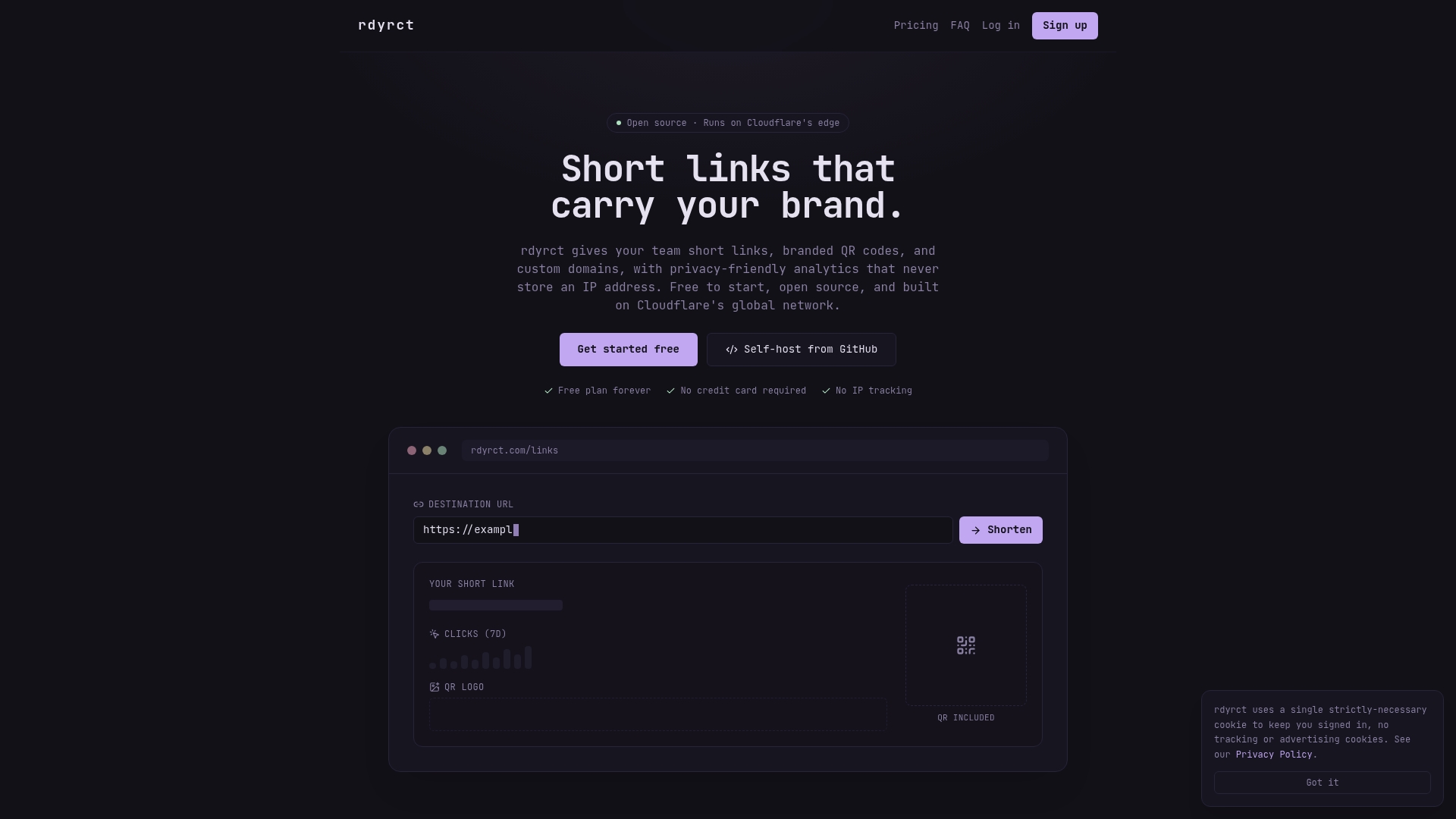
Rdyrct solves the second problem. Create a branded short link on your custom domain, generate the QR code for that link, drop the SVG into your artboard, and export your press PDF. If the destination changes after printing, update the redirect in Rdyrct and the printed asset keeps working. Analytics show you scan counts, device types, referrers, and geographic data without storing individual IP addresses.
The free plan covers basic short links. Paid tiers unlock branded QR codes, custom domains, longer analytics history, and team access management. Self-hosting on Cloudflare is available for teams with data-residency requirements. Start with Rdyrct and have your first branded vector QR ready in under five minutes.
Sources
- QR Code - Error correction / QR Code specification notes
- Designing QR codes that survive real-world scanning: a debugging playbook
- qrcode-svg — NPM package for SVG QR generation
- paulmillr/qr — minimal QR code generator & reader (GitHub)