Stop 2 AM Certificate Failures: CNAME Flattening in Cloudflare
Stop 2 AM Certificate Failures: CNAME Flattening in Cloudflare

CNAME flattening tells Cloudflare to resolve a CNAME to its final A/AAAA addresses and return IP answers, so you can effectively use CNAME behavior at the zone apex. You need it whenever you want your root domain (example.com, not www.example.com) to point at a service that only issues CNAME targets. Most zones get this automatically at the apex. The catch shows up later: proxied records, third-party TLS verification, and cross-account CNAMEs each interact with flattening differently, and that’s usually where admins get stuck.
TL;DR:
- Flattening applies automatically at the zone apex across all Cloudflare plans, returning final IP addresses instead of CNAME chains to speed up resolution.
- Non-apex CNAME flattening on paid zones can be enabled per record or zone-wide, but it is unnecessary for apex records where flattening is always active.
- Troubleshooting often involves checking for dangling CNAMEs with no IP records, verification failures, or cross-account CNAME restrictions that prevent proper resolution.
- Load balancing endpoints can set
flatten_cnameto false to receive CNAME answers instead of IPs, which is useful for certain DNS routing and failover scenarios.- Changing flattening settings requires quick adjustments via the dashboard or API, but supervision of current state and target records is essential to avoid misconfiguration.
Table of Contents
- What Is CNAME Flattening in Cloudflare?
- When Does Flattening Happen by Default?
- Why Is My CNAME Not Resolving?
- How Does flatten_cname Work for Load Balancer Endpoints?
- What Changes With a Partial (CNAME) Setup?
- How Do I Enable or Disable CNAME Flattening?
- What Should You Check Before Changing Flattening Settings?
- Where Can I Read the Official Cloudflare Documentation?
- Why CNAME Flattening Gets Underrated as a Troubleshooting Skill
- FAQ
What Is CNAME Flattening in Cloudflare?
CNAME flattening resolves the chain behind a CNAME and returns the final IP addresses instead of the CNAME itself. DNS standards technically prohibit a CNAME coexisting with other records at the zone apex, which is exactly where you’d want to point example.com at a load balancer or hosting provider that only gives you a hostname. Cloudflare’s CNAME flattening documentation describes this as the mechanism that lets you use CNAME-like targeting at the root anyway.
Here’s what happens during a lookup:
- A resolver asks Cloudflare for
example.com. - Cloudflare follows the CNAME chain internally, possibly through several intermediate CNAMEs, until it hits an A or AAAA record.
- Cloudflare returns that final IP directly to the resolver instead of exposing the CNAME chain.
- Proxied records return Cloudflare’s anycast IPs with a fixed 300-second TTL.
- DNS-only (gray-clouded) flattened answers inherit the TTL of the resolved target instead.
The practical result: resolvers see a clean A or AAAA response and skip the extra round trips a full CNAME chain would otherwise require. Cloudflare’s flattening diagram illustrates this side by side with a standard, unfattened chain, and the difference in hop count is the whole point. Fewer lookups means faster resolution, particularly on chains that would otherwise bounce through two or three CNAMEs before reaching an IP.
When Does Flattening Happen by Default?
Apex records flatten automatically on every Cloudflare plan, free included. You don’t toggle anything to get that behavior; it’s baked into how Cloudflare handles the zone root. Where things diverge is everywhere else in the zone.
- Apex CNAME (
example.com): flattens automatically, no setting required, on any plan. - Non-apex CNAMEs on paid zones: you can enable a “flatten all CNAMEs” setting that applies the behavior zone-wide, or flatten individual records one at a time.
- Per-record flattening: available through the dashboard or the API field
flatten_all_cnames, which Cloudflare’s setup docs cover for both surfaces.
Statistic Callout: Cloudflare applies apex flattening across every plan tier, including free zones, according to its own DNS setup documentation. Non-apex flattening (individual records or the flatten-all setting) is a paid-zone feature.
The Flatten toggle disappears from the dashboard in a few predictable situations: the record is already proxied (proxied records get flattened IP behavior implicitly), the record is the apex (already flattened by default, no toggle needed), or you’ve already enabled flatten-all at the zone level, which makes per-record toggles redundant.
Why Is My CNAME Not Resolving?
Three failure patterns account for most flattening support tickets, and each has a distinct fingerprint.
- Dangling CNAME. If the target of your CNAME has no A or AAAA record, Cloudflare has nothing to flatten and returns NODATA. This gets misread as “DNS hasn’t propagated yet” constantly, when the real issue is the target simply lacks an IP record.
- Verification failures. Some third-party services (SSL issuers doing HTTP-01 or TLS-ALPN-01 challenges, domain ownership checks) expect to see the literal CNAME in the response, not a flattened IP. If verification fails right after you enable flattening on a record, that’s the tell.
- Error 1014, CNAME Cross-User Banned. Pointing a CNAME at a target that lives in a different Cloudflare account triggers this error outright, per Cloudflare’s flattening docs.
Run this sequence when a record misbehaves: dig +trace name to see the full delegation path, then dig @<cloudflare-resolver> name to check what Cloudflare itself hands back, then query the authoritative provider for the target directly. If none of that explains it, check the dashboard’s DNS logs for a 1014 error or export the zone file to inspect the record’s tags.
Pro Tip: Keep a small script that runs the trace/dig/authoritative sequence on demand rather than reconstructing it from memory during an incident. A dangling CNAME and a 1014 error look identical from the outside (both just “fail to resolve”) until you actually check the target’s own records.
For verification failures specifically, the fix is usually temporary: disable flattening on that single record, complete the challenge, then flip it back on. Cloudflare’s own guidance backs that as the standard workaround rather than a permanent configuration change.
How Does flatten_cname Work for Load Balancer Endpoints?
Cloudflare Load Balancing has its own version of this setting, separate from the DNS-level toggle. The flatten_cname field on an endpoint defaults to true, meaning Cloudflare resolves the endpoint’s hostname and returns an IP just like standard flattening.
Set it to false when you need Cloudflare to return an actual CNAME answer instead:
- Third-party providers that do their own DNS-based traffic steering and need to see a hostname, not an IP, to route correctly.
- Geo-aware endpoints where the downstream provider’s own DNS logic depends on receiving a CNAME.
- Failover scenarios where you’re switching between hostnames rather than IPs, and the receiving system expects that hostname format.
One quirk worth knowing before you deploy this: mixed pools, where some endpoints have flatten_cname set to true and others false, can cause client-visible responses to alternate between CNAME and A record answers depending on which pool member is currently active. That’s expected behavior per Cloudflare’s load balancing docs, not a bug, but it can look alarming in a DNS monitoring tool that isn’t expecting the shape of the answer to change.
What Changes With a Partial (CNAME) Setup?
A partial setup, where you add Cloudflare via CNAME rather than transferring nameservers, comes with a structural requirement most admins miss until proxying the apex fails. Your authoritative DNS provider needs a CNAME record pointing to {your-hostname}.cdn.cloudflare.net, and Cloudflare’s partial setup documentation is explicit that this is the mechanism that connects your existing DNS host to Cloudflare’s proxy.
- Apex proxying in a partial setup only works if your authoritative provider itself supports flattening, or offers an ALIAS/ANAME record type that achieves the same effect.
- Without that support, you can proxy subdomains through Cloudflare but not the bare root domain.
- Watch for a subtler trap: if Cloudflare’s zone ends up holding both the CNAME and its eventual target record, Cloudflare can resolve the chain internally rather than querying your authoritative provider. That can mask a mismatch between what your authoritative DNS actually serves and what Cloudflare returns, which makes debugging partial setups more confusing than full setups.
How Do I Enable or Disable CNAME Flattening?
Changing this setting takes under a minute in the dashboard, or one API call if you’re automating it across zones.
- Go to DNS > Settings and find the “CNAME flattening for all CNAME records” toggle to change zone-wide behavior.
- On the DNS Records page, open an individual CNAME record and use its own Flatten switch for per-record control.
- Via API, send a
PATCHrequest to the DNS Settings endpoint with"flatten_all_cnames": trueorfalsein the body.
| Change scope | Where to do it | Field / control |
|---|---|---|
| Zone-wide, all CNAMEs | Dashboard: DNS > Settings | “CNAME flattening for all CNAME records” toggle |
| Zone-wide, via automation | API: PATCH DNS Settings | flatten_all_cnames |
| Single record | Dashboard: DNS Records page | Per-record Flatten switch |
| Single record, via automation | API: record-level setting | flatten_cname |
One thing to build into any export/import pipeline: Cloudflare tags flattened records with cf-flatten-cname in the zone file. Strip that tag during a migration and the record loses its per-record flattening setting on import, silently reverting to default behavior. Cloudflare’s setup docs call this out directly, and it’s the kind of thing that only surfaces days later when a verification check that used to pass suddenly doesn’t.
What Should You Check Before Changing Flattening Settings?
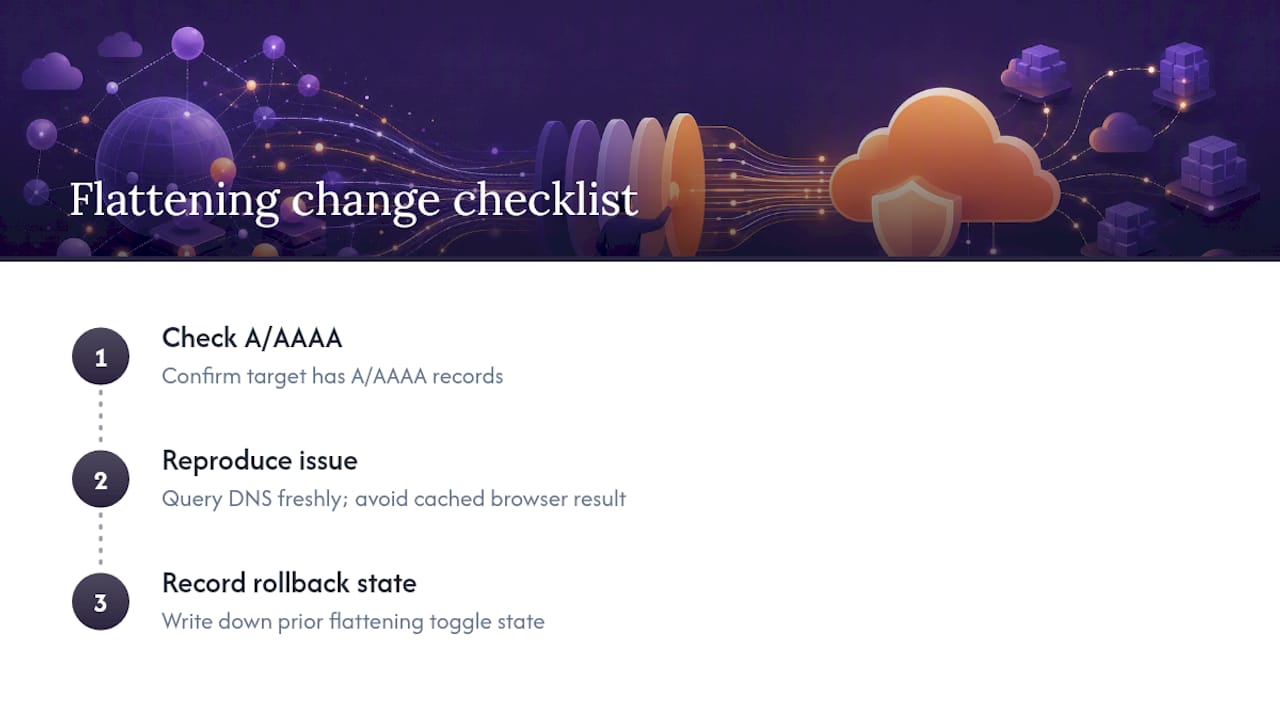
Three steps cover almost every flattening change safely: confirm the target actually has A/AAAA records before you flip anything, reproduce the failure with a fresh dig query rather than trusting a cached browser result, and know your rollback (the previous toggle state, written down, before you touch it) before you make the change.
Run diagnostics without logging client IP addresses where you can avoid it. Resolver-side queries (dig, host, direct nameserver lookups) don’t require capturing who’s asking, only what came back. That habit matters more once your link infrastructure carries real traffic. Rdyrct builds its own link analytics around that same principle: measuring referrer, device, and country data without ever storing the requester’s IP address, which is the same discipline worth applying to your own DNS troubleshooting logs.
If you’re validating a partial setup that touches TLS, it’s worth understanding certificate coverage limits too. A comparison of wildcard and SAN certificates is a useful side reference if your flattened apex needs to share coverage with several subdomains.
Where Can I Read the Official Cloudflare Documentation?
Cloudflare’s own docs remain the most reliable reference: the CNAME flattening overview, the setup guide, the load balancing endpoint docs, and the partial setup guide. For the underlying DNS behavior that flattening works around, RFC 1035 is the standard defining why apex CNAMEs are restricted in the first place.
Why CNAME Flattening Gets Underrated as a Troubleshooting Skill
Most people treat CNAME flattening as a one-time setup decision: turn it on, forget it exists. That’s backwards. The setting matters most during incidents, not during initial configuration, because it changes what a dig output actually means. An admin who doesn’t know their apex is flattened will misread a clean A record response as “the CNAME never applied,” burn an hour chasing a phantom propagation issue, and never touch the actual problem.
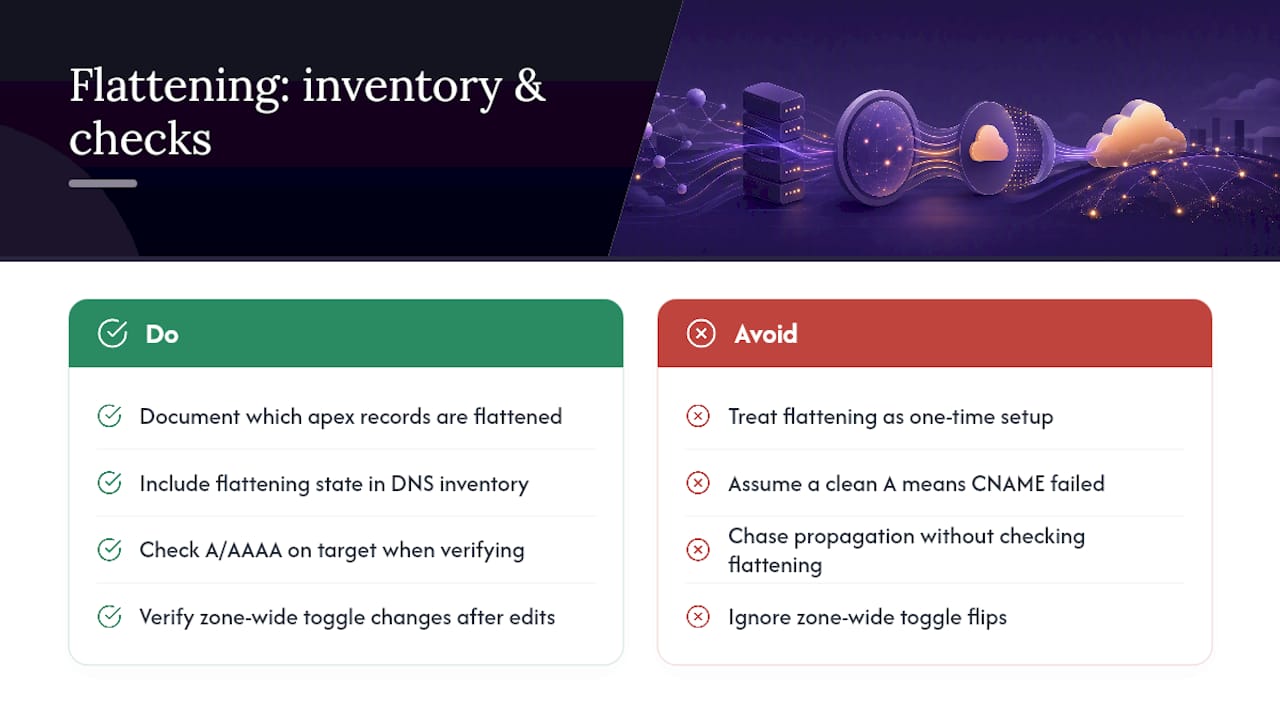
The conventional advice, enable flattening and move on, skips the part that actually costs teams time: knowing which of your records are flattened, which aren’t, and why a verification check that worked yesterday is failing today because someone flipped a zone-wide toggle. Error 1014 gets more attention in forums than dangling CNAMEs do, but in practice the dangling CNAME is far more common and far more likely to eat an afternoon, because it looks exactly like a propagation delay until you specifically check for A/AAAA records on the target.
If you take one thing from this, it’s this: treat flattening state as part of your DNS inventory, not a background default. Know it before you need it, not while a certificate renewal is failing at 2 a.m.
— Andrea
FAQ
How Do I Configure a CNAME Record in Cloudflare?
Add the record on the DNS Records page with the hostname and target, then decide whether it needs proxying (orange cloud) or DNS-only (gray cloud) status. Apex CNAME behavior flattens automatically on every plan, while non-apex records need the per-record Flatten toggle or the zone-wide setting on paid zones.
Does GoDaddy Allow CNAME Flattening?
GoDaddy’s own DNS platform is not the source for this feature; flattening happens at whichever provider is authoritative for the zone. If you’re running a partial (CNAME) setup with GoDaddy as your registrar, apex proxying still depends on whether your authoritative DNS host supports flattening or an ALIAS/ANAME equivalent.
How Do I Flush Cloudflare DNS?
Cloudflare doesn’t offer a manual cache-flush button for public DNS the way some registrars do, since answers expire based on TTL. Proxied flattened records carry a fixed 300-second TTL, while DNS-only flattened answers inherit the target’s own TTL, so changes propagate once that window passes.
What Is a CNAME Record in Cloudflare?
A CNAME record points one hostname to another hostname rather than directly to an IP address. When Cloudflare’s CNAME flattening resolves that chain and returns the final A/AAAA address instead of the CNAME itself, it lets you use that same pointing behavior at the zone apex, where a literal CNAME normally isn’t allowed.